
Keyboard shortcuts
Every ShockAI Visualiser shortcut, generated from the Visualiser's own keymap so this page can never drift from the keys that fire, with the mouse moves beside them.
Press ? in the Visualiser, or the keyboard button in the title bar, for the shortcuts sheet. This page lists the same keys. It is generated from the Visualiser's own keymap, so the two cannot disagree.
0:08
Keys work while the scene has your attention: not while you type in a field, and not while a menu or the sheet itself is open. A key whose layer does not apply to this blast, such as the section view above ground, does nothing.
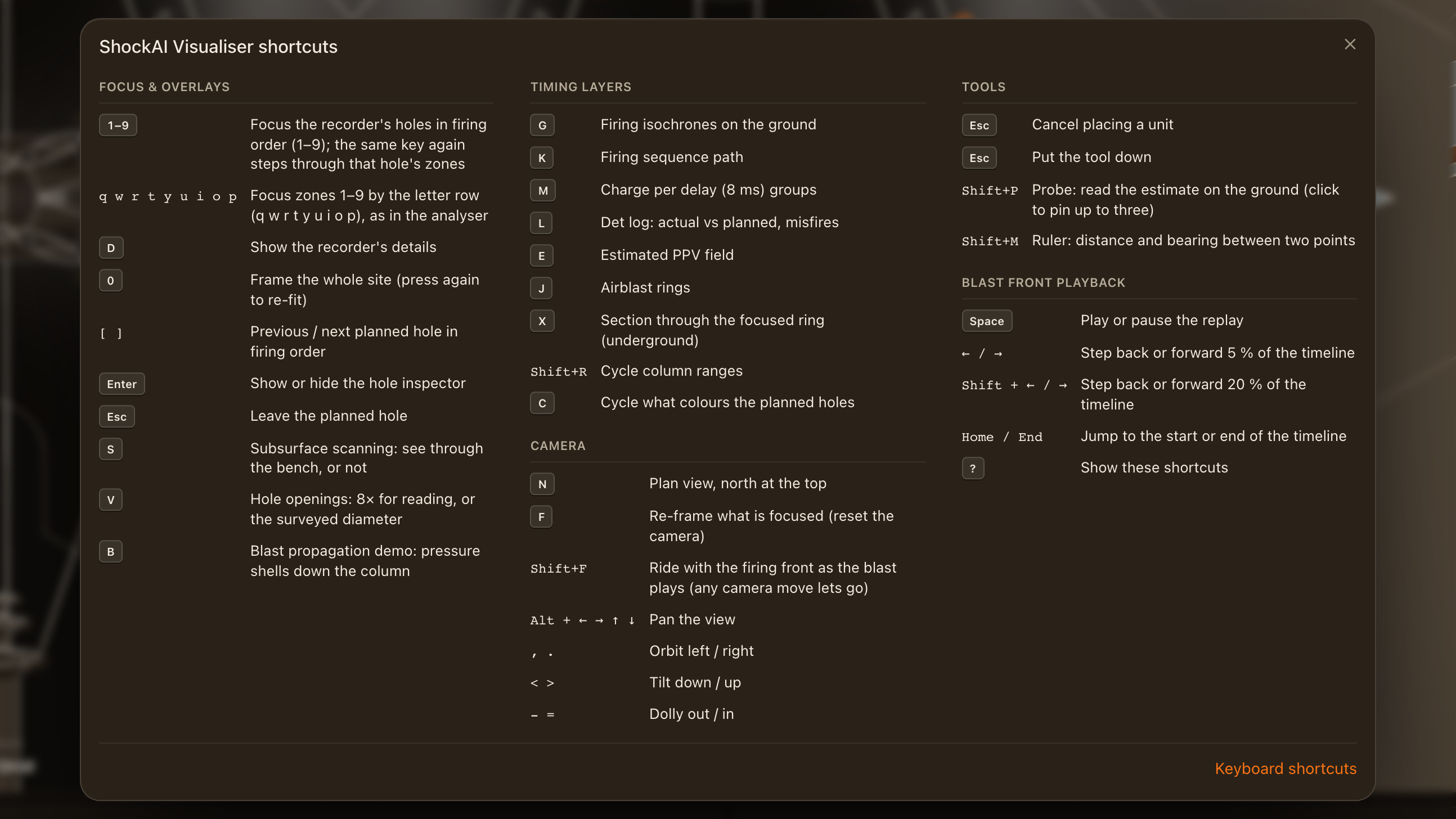
All shortcuts
| Action | Keys |
|---|---|
| Focus & overlays | |
| Focus the recorder's holes in firing order (1–9); the same key again steps through that hole's zones | 1–9 |
| Focus zones 1–9 by the letter row (q w r t y u i o p), as in the analyser | q w r t y u i o p |
| Show the recorder's details | D |
| Frame the whole site (press again to re-fit) | 0 |
| Open the unit's record in the analyser | Shift+A |
| Set every monitor’s record side by side on the blast’s clock | Shift+U |
| Previous / next planned hole in firing order | [ ] |
| Show or hide the inspector | Enter |
| Close the inspector | Esc |
| Leave the planned hole | Esc |
| Subsurface scanning: see through the bench, or not | S |
| Hole openings: 8× for reading, or the surveyed diameter | V |
| Quality: the next of Simple, Standard and Cinematic | Shift+Q |
| Blast propagation demo: pressure shells down the column | B |
| Reveal: name the pattern and every unit where it stands (hold to keep the names up) | H |
| Timing layers | |
| Firing isochrones on the ground | G |
| Firing sequence path | K |
| Charge per delay (8 ms) groups | M |
| Det log: actual vs planned, misfires | L |
| Estimated PPV field | E |
| Airblast rings | J |
| Section view: through a ring underground, across the rows on a bench | X |
| Cycle column ranges | Shift+R |
| Open or shut the column ranges table | Shift+C |
| Cycle what colours the planned holes | C |
| Camera | |
| While flying: move, go down and up, hurry (the mouse looks, the wheel sets the pace) | W A S D, Q E, Shift |
| Stop flying or standing | Esc |
| Fly the camera, or give it back | Z |
| Plan view, north at the top | N |
| Re-frame what is focused (reset the camera) | F |
| Ride with the firing front as the blast plays (any camera move lets go) | Shift+F |
| Pan the view | Alt + ← → ↑ ↓ |
| Orbit left / right | , . |
| Tilt down / up | < > |
| Dolly out / in | - = |
| Back to the view before this one | Backspace |
| Forward again to the view you came back from | Shift+Backspace |
| Keep this view as a bookmark | Shift+B |
| Photo mode: put the panels away for a clean still | Shift+H |
| Orbit: turn slowly round the scene in photo mode | Shift+O |
| Save the sheet as a drawing to scale (SVG) | Shift+E |
| Full screen: the Visualiser alone on the display | Shift+Enter |
| Save the view as a still, its title card on it | Shift+S |
| Leave photo mode | Esc |
| Tools | |
| Cancel placing a unit | Esc |
| Put the tool down | Esc |
| Probe: read the estimate on the ground (click to pin up to three) | Shift+P |
| Ruler: distance and bearing between two points | Shift+M |
| Blast front playback | |
| Play or pause the replay | Space |
| Step back or forward 5 % of the timeline | ← / → |
| Step back or forward 20 % of the timeline | Shift + ← / → |
| Jump to the start or end of the timeline | Home / End |
| Step back to the previous event on the clock | ↑ |
| Step on to the next event on the clock | ↓ |
| Loop what the transport has in view | Shift+L |
| Sound: hear each hole when its sound reaches the camera | A |
| Time scale: faster | Shift+↑ |
| Time scale: slower | Shift+↓ |
| Show or hide the recorded traces | Shift+T |
| Scenes, commands & help | |
| Open the scenes | Shift+G |
| Close the scene chooser | Esc |
| Close the scene picker | Esc |
| Search every command | ⌘K / Ctrl+K |
| Show these shortcuts | ? |
| Frame rate: how fast the scene draws, and what each frame asks | Shift+I |
Mouse and trackpad
| Move | How |
|---|---|
| Orbit | Drag |
| Pan | Right-drag, or three fingers |
| Move in and out | Scroll, pinch or middle-drag, towards the pointer |
| Focus a zone | Click it |
| Focus a recorded hole | Double-click it |
| Select a planned hole | Click it |
| Focus a unit | Click it, in the scene or the device tray |
On a touch screen, one finger orbits and two fingers move in and out.