
Updating firmware on your device
Install a published firmware release on a connected ShotTrack unit from Support. Keep the tab open while the host reboots.
When a firmware update is available, you install it from the Support tab on a connected unit. Use Chrome or Edge on a laptop or Android device. Charge the unit to at least 20% first, keep this tab open, and do not power the unit off. The host reboots during the update.
See that an update is available
When a newer release is available, Overview shows a notice with the version. Click Review update to open Support. That does not start the update.

Open firmware on Support
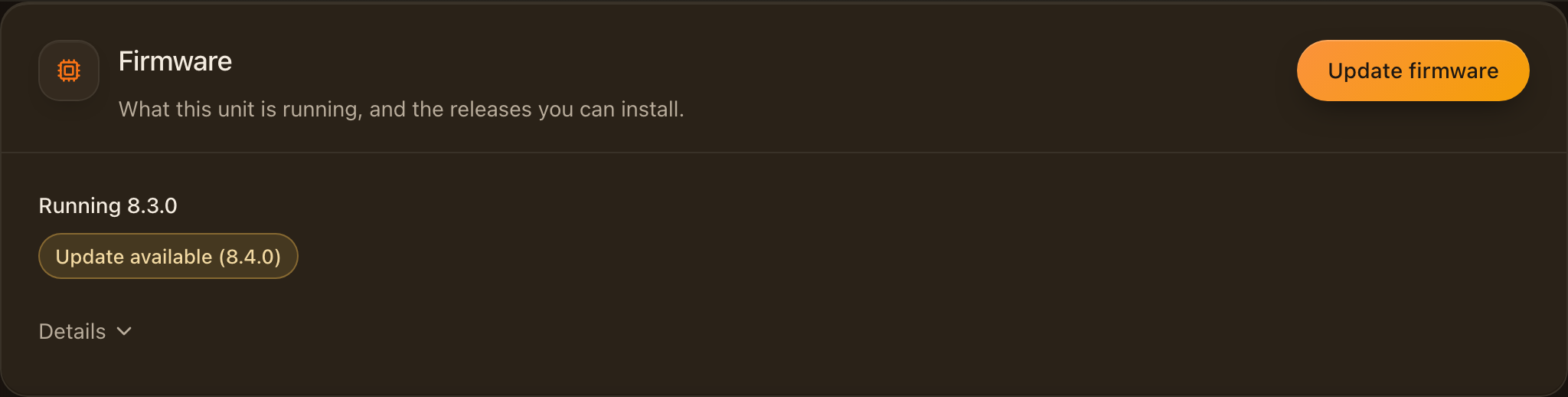
On the Support tab, the Firmware card shows what the unit is running. Click Update firmware to choose a release.
Choose the release
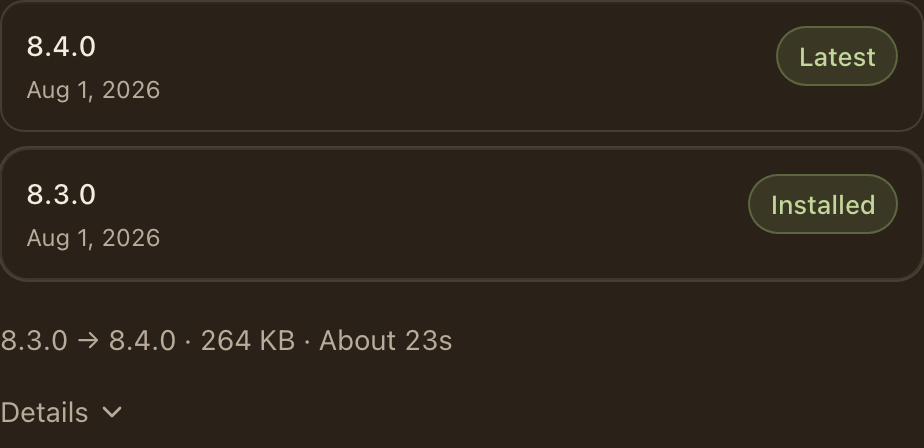
Pick the latest release, here 8.4.0 over the 8.3.0 already on the unit, then click Update to that version.
Keep this tab open
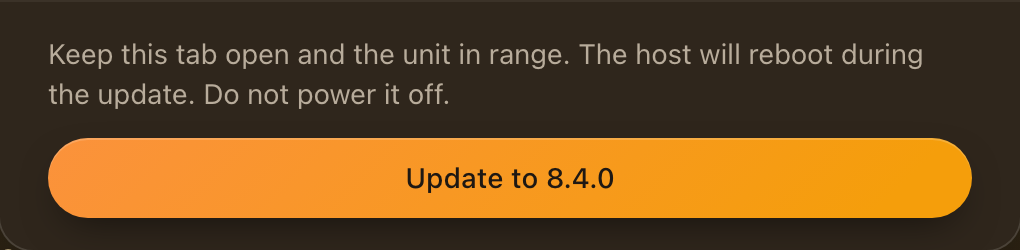
Keep this tab open and the unit in range. The host will reboot during the update. Do not power it off.
Wait while images download
The app downloads every image in the release and checks it before writing anything to the unit. Keep the tab open.

Keep the tab open while it writes
The unit writes the host first, then the co-processor. The host reboots in the middle. Leave the tab open and the unit switched on until it finishes.

Check the new version
When it finishes, the page shows the release you installed and the versions the unit reports. You can disconnect as usual.

If the update cannot finish, the unit keeps any steps that already wrote. Charge it, move it closer, and try again from Support. Units that cannot update here need to come back for re-calibration.