
Getting remote support for your device
Share your connected ShotTrack device with the support team for a live remote diagnosis — no software install, just a 6-digit code.
When a device problem is hard to describe over the phone, ShotTrack support can look at your device directly. You connect the device on the device support page — or on the unit's Support tab in Web Sync if you are already signed in — enter a one-time code that support reads out to you, and for the length of the session the team drives the device from their own console: reading its health and settings, listing and recovering its files, and changing settings where needed. Every change they make is recorded in the session log, and you can end the session at any time.
Start a support session
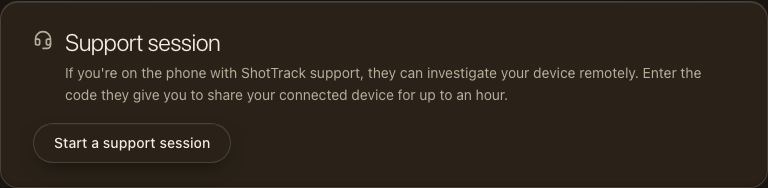
While on the phone with ShotTrack support, connect your device as usual, then click Start a support session in the Support session card.
Enter the code from support
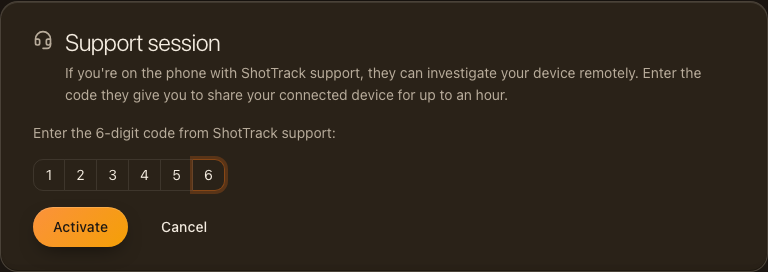
Type the 6-digit code the support person gives you and click Activate. If they sent you a link instead, opening it fills the code in for you.
Keep the page open during the session
Once activated, the banner shows the session status, which device is shared, and how long is left. Keep the page open and the device connected. Support can now see the device and pull its files; when they pull files you will see the transfer running, and every setting they change is recorded in the session log.
If support arms the device to record, it disconnects on purpose and the page says so. Leave the page open: when the shot is done, support can bring the device back without you pairing it again.
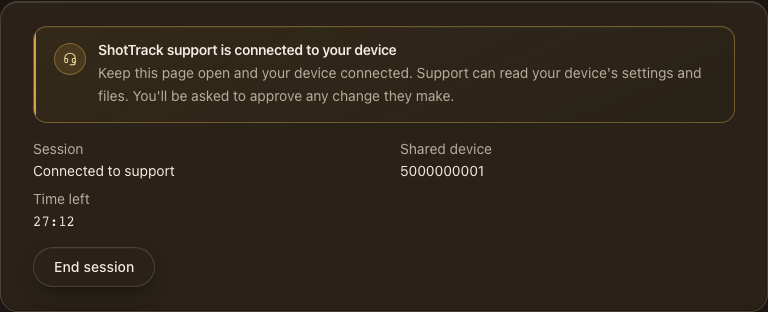
The session ends automatically when the timer runs out, when you click End session, or when support closes it. Nothing stays installed and support loses access the moment the session ends.