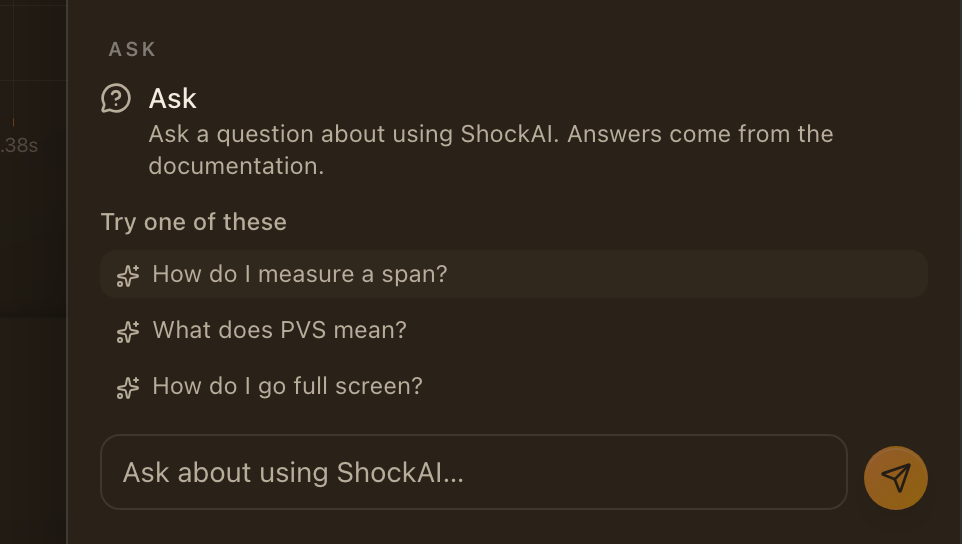
ShockAI Assistant
What the assistant can see about the event you have open, what it will and will not answer, how to enable it for your workspace, how it explains the tools, and how ShockAI Voice runs commands and answers aloud.
The ShockAI Assistant is a chat panel on ViB and VoD event pages. Ask it about the recording you have open, in plain language, and it answers from the event's processed figures.
What it sees
The assistant is given a context bundle for the event: a small, anonymised summary derived from the analysis. For a VoD event that is the holes, zones and cuts with their positions and velocities, the cable trace in reduced form and the unit's specification. For a ViB event it is the peaks, frequencies, envelopes and compliance verdicts, plus the project's current standard selection. When a blast plan is linked it also knows the maximum instantaneous charge, the nearest-hole distance and the scaled distance.
It never sees names, notes, tags, device serials, coordinates, file names or anything else that identifies your project or people. The chat itself is not stored.
What it answers
- Questions about the event's numbers: "Which zone had the lowest VoD?", "How far under the limit was the vertical axis?", "Is hole 3 inside the unit's operating range?"
- Questions about the tools: how to measure a span, what a shortcut does, what a metric means, where a setting lives. Those answers are grounded in this documentation and end with a link to the page they came from.
It declines geology, cost and safety advice beyond what the data supports, and anything that is neither about the event nor about using ShockAI.
Enabling it
The assistant is by invitation. An owner of the team asks for it in the team's settings, on its ShockAI Assistant card, after agreeing to what is sent, and ShockAI switches it on. The workspace's plan must include it. The same switch covers Draft with AI in the report editor and the assistant in Report Studio. The first time you open it you are shown how the event data is handled and asked to agree. Every conversation is metered against the workspace's usage.
Voice
ShockAI Voice is the assistant spoken. Hold ` and say what you want, or open Tell ShockAI (⌘K) and type it: a lens, a look, a hole, a monitor, play. The command runs from your words as soon as they are heard, the same command a key or the palette runs, and undo takes a spoken command back. Ask about the blast on screen, its peaks, holes and timing, and the answer comes back spoken a sentence at a time, or as captions in presenter mode. A room lets several people explore one blast together, each on their own screen.
Audio goes from your browser to the speech service and is never stored. Names stay in your browser: a spoken reply names the unit, not your site. A question sees the same anonymised summary of the blast as the chat, and needs the assistant switched on for your team and your agreement. Voice is a further invitation on top of the assistant; a team asks for it as it asks for any beta feature.
Help without an event
The Help button in the analysers also has an Ask section that answers how-to questions about the tools for every signed-in user, with no event data involved. It reads only your question and this documentation.