
Seismographs in blast reports
The blast report blocks that print seismograph records: the instrument table, the comparison of each pair, the results and compliance pages, and the vendor's own reports in the appendix.
A blast's seismograph records go into its report with the ShockAI units. The built-in minimum report prints them in its results and compliance pages; two more blocks, in the Report Studio, print them in full. See Blast reports for the report itself and Report Studio for templates.
The pages on this page are rendered from the Studio's sample data, not from a real blast.
Seismograph records
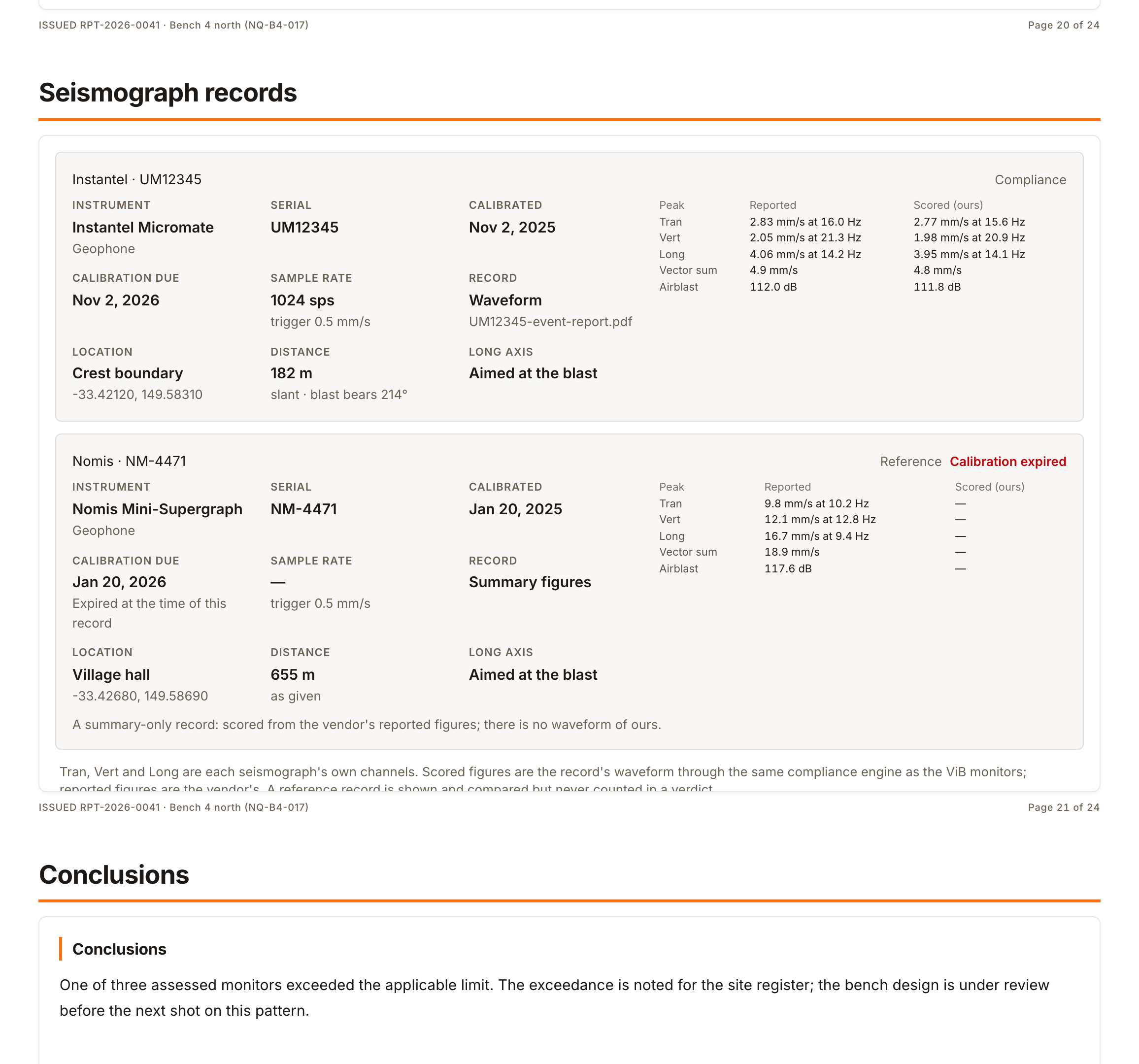
Seismograph records is the instrument table a regulator reads: each record's make, model and serial, its calibration dates (an expired calibration is flagged), the sample rate and trigger level, whether it is a waveform or summary figures, its location, distance and Long axis, its role, and the peaks and frequencies, the vendor's beside ours. Up to three records print on a page.
In the block's settings, Vendor's figures beside ours and Location, distance and bearing turn those parts on or off. A blast with no records skips the page.
Instrument comparison
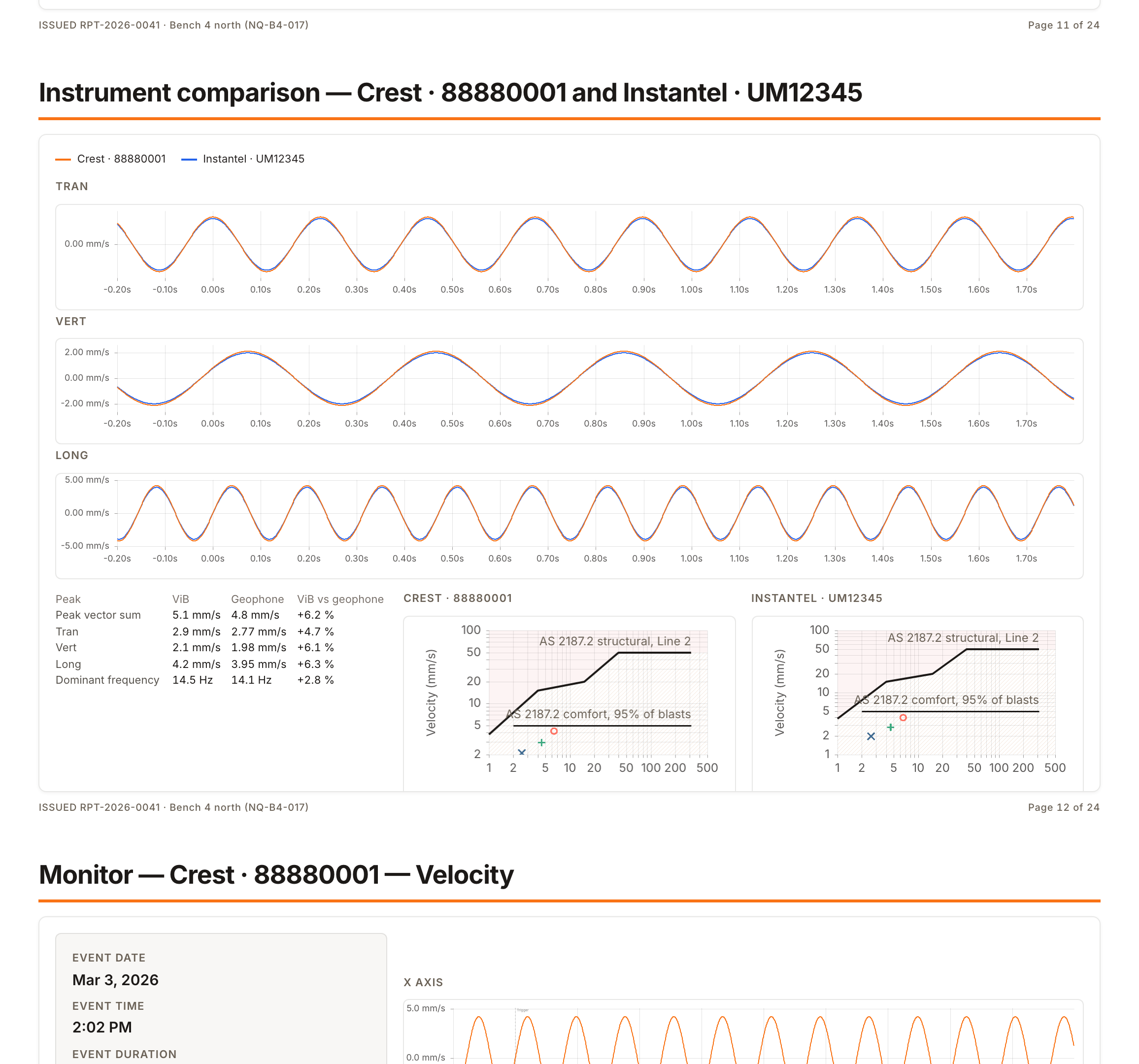
Instrument comparison prints a page per paired record: the unit's and the seismograph's traces on one time axis, their peaks side by side with the difference, each instrument's peak-against-frequency plot against the project's limits, and how the two were lined up in time.
- Compare: Tran, Vert, Long and the vector sum, or The vector sum only. Components are compared only where the unit has a scored Tran, Vert and Long; otherwise the page compares the vector sum and says why.
- Maximum pairs: how many paired records get a page, 4 unless you set it, up to 12.
A blast with no paired record produces no comparison pages.
Results and compliance pages
The Results table and the Monitor compliance page blocks each have a Seismograph records setting: Include, the default, or Leave out.
- In the results table, each record is a row beside the units. A compliance instrument carries its verdict; a reference is marked as not counted.
- A compliance instrument with a scored waveform gets its own compliance page, after the ViB monitors and within the same maximum. Its channels are its own Tran, Vert and Long. A summary record has no waveform, so it is scored in the results but gets no page.
A compliance instrument's verdict counts in the report's headline verdict and its compliance statement, where the set is called instruments rather than monitors. A reference never moves either.
Vendor reports in the appendix
The Appendix block's Vendor seismograph reports setting appends each record's own PDF event report, as imported, after the report, each behind a page that names the record. A record imported without a PDF has nothing to append.
Which template does what
- The minimum report, built in, prints records in its results and compliance pages. It has no instrument table or comparison pages.
- The regulatory starter adds Seismograph records and Instrument comparison, and appends the vendor reports.
- Your own template takes any of these blocks. Add them in the Studio and publish the template.
When the report changes
A report never waits for a seismograph: a blast's preliminary report renders when its ShockAI units have reported. A record imported or changed afterwards changes what the report is made of, so a new version renders; the versions already rendered keep their own files. A blast with only seismograph records and no reporting units never renders a report on its own.