
Reports and exports
Download the processed data as CSV or the raw recording, view and edit the report, generate the PDF, and re-analyse an event on a newer engine.
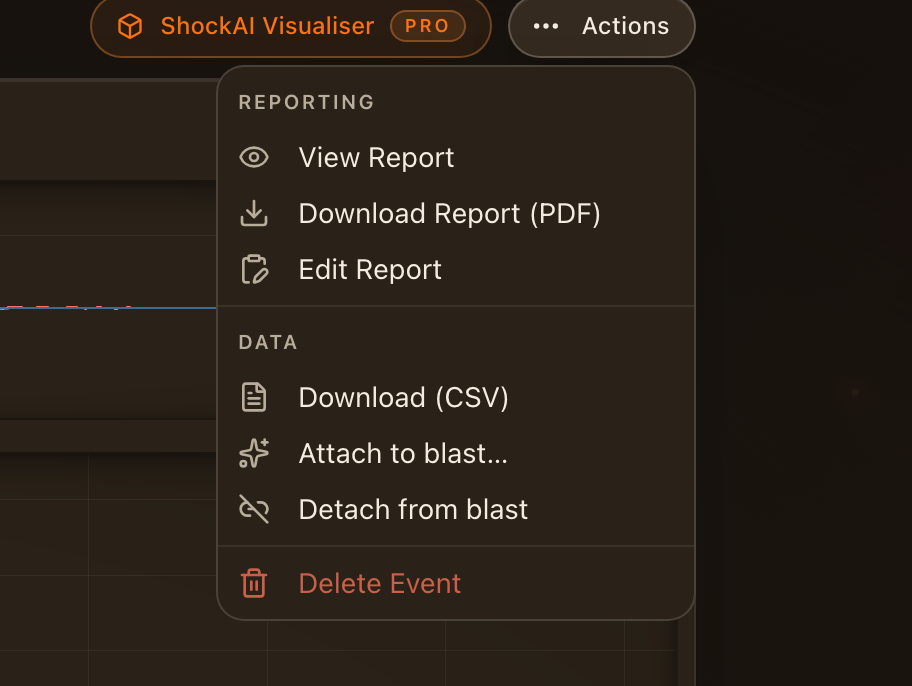
The event actions menu in the page header groups everything that leaves the analyser. Rename the event, add a note or tags from the same menu.
Data
- Download (CSV) exports the processed traces as they are drawn.
- Download File gives you the raw recording exactly as the unit sent it, for your own tools or for support.
Reporting
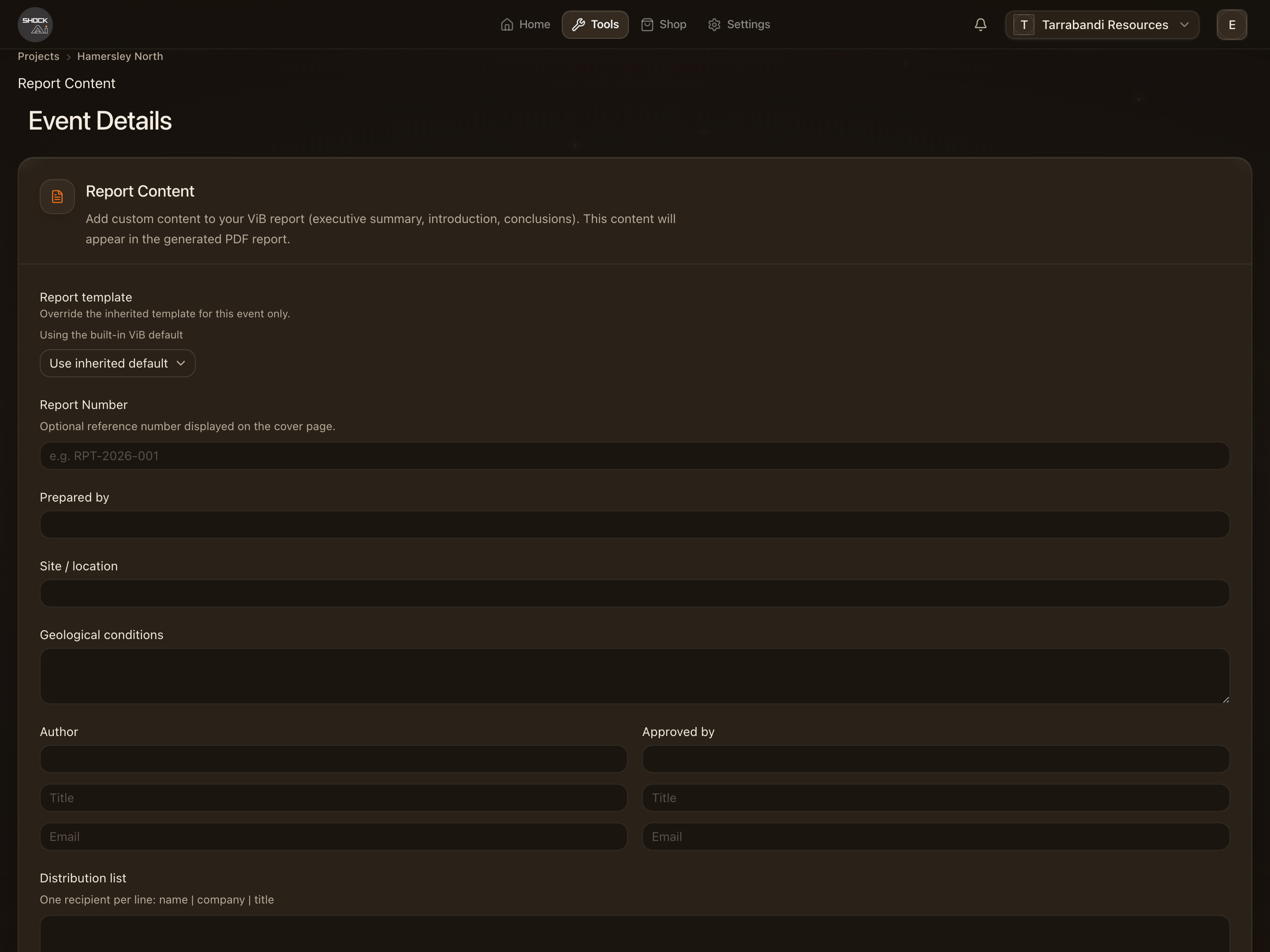
- Edit Report opens the report content editor, where you write the narrative, choose which sections and compliance charts print, and attach a drill map. Saved content also appears in the account's Reports list.
- View Report opens the rendered report in a new tab, exactly as the PDF prints.
- Download Report (PDF) renders the report with the project's template. The compliance verdicts printed there are the same ones scored on the event page.
The compliance standard
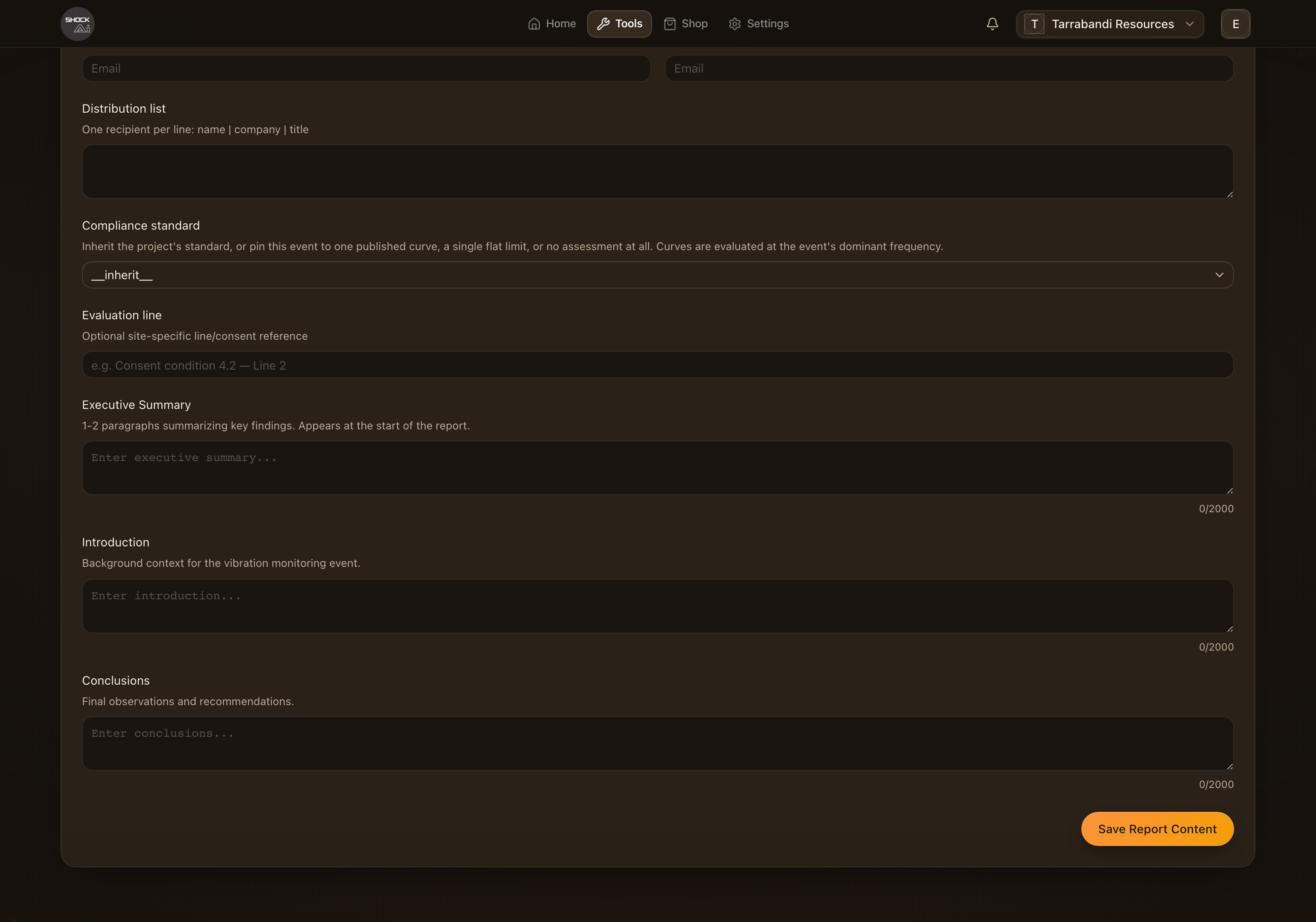
The compliance standard in the editor chooses which limits the printed verdicts use. The project's setting is the default; pick a different one here when a report has to answer to another line. See Compliance and standards.
The rendered report
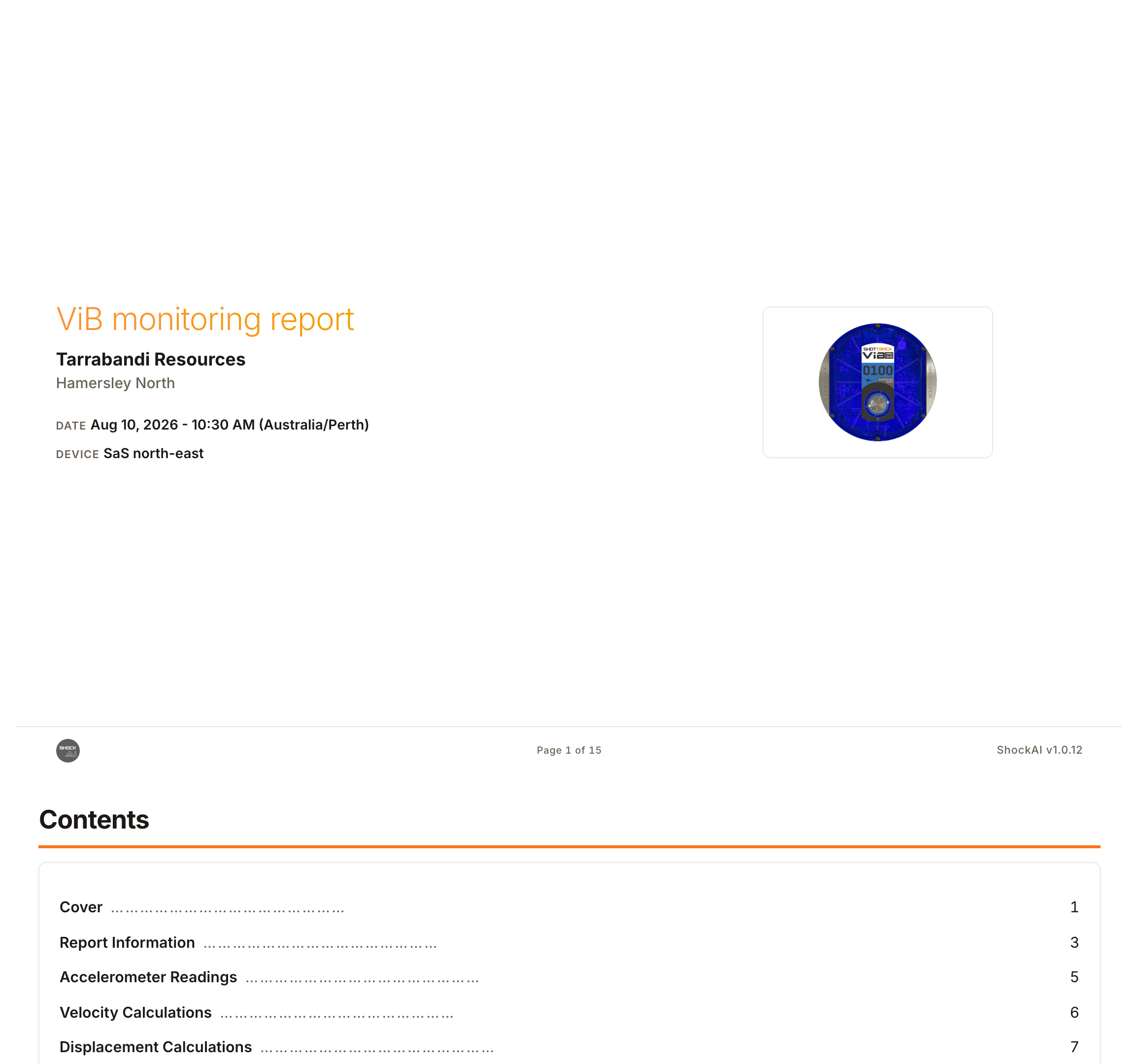
The preview is the report as it prints: the cover, the readings, the compliance pages and your narrative, laid out by the template the project uses. Report Studio is where that template is designed.
Reports are part of the paid plans. On a plan without them the menu offers the upgrade instead.
Re-analysis and engine versions
Every event records the version of the analysis engine that processed it. When a newer engine is available, the page offers Update event data; Re-analyse Event re-processes the raw recording with the latest engine. Re-analysis recomputes every derived figure, including zone peaks and compliance, and can remove annotations that no longer fit the new trace, so the dialog warns you first. The previous artifact is kept for audit.